Apple made a huge announcement at WWDC 15 that iOS 9 would support device app assignment. Gone are the days of using Configurator, VPP codes and multiple AppleIDs for those of us who manage carts of iPads as well. Meraki quietly released an update that added this feature to organizations who have Systems Manager Enterprise. Sorry, if you are still on Legacy Systems Manager this feature will be unavailable.
I've been testing it this week and it has been solid thus far. I'm going to give a brief overview on the setup below.
Enable Device Assignment
Before you can use Device Assignment you must enable it for your organization.
Go to Organization > MDM
Under the Apple VPP Managed Distribution there is a new column titled Device assignment. You have the option to disallow access, allow any network, or only specific networks to utilize the VPP licenses.
Assign Apps to Devices
This is where iOS admins will save a lot of time. Since we no longer need to assign a license to an AppleID, we can go right to the App assignment page.
Go to Systems Manager > Apps
Click Add New > iOS App
Search for an app you already have a VPP license for. Remember, you need to "purchase" licenses from VPP even if it is a free app.
Click the Add button next to the app you want to add.
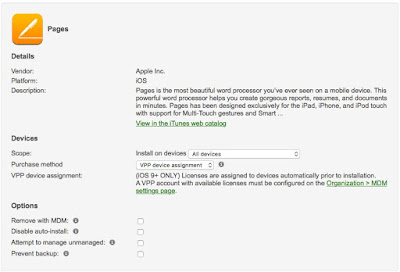
Now we need to set the scope for the app and the purchase method.
First, set the scope for the devices that you want to receive the app.
Next, change the purchase method to VPP Device Assignment
If you want the app to install automatically, make sure the Disable auto-install box is unchecked.
Click Save Changes
The app should now push out to the device within a few minutes. If you are impatient like me, you can click on the Re-push to missing link to speed things up.
Troubleshooting
- Device prompts for AppleID
- Make sure you have VPP licenses available for the apps you are pushing out.
- Ensure you have enabled the VPP account for device assignment on the correct network.